Page Elements
- Title: The main heading of the document.
“The title of the document is ‘Project Plan’.” - Header: The top section of each page, often containing titles, dates, or page numbers.
“The document title is repeated in the header.” - Footer: The bottom section of each page, often containing page numbers or footnotes.
“The page numbers are located in the footer.” - Paragraph: A block of text separated by a blank line or indentation.
“Each section starts with a new paragraph.” - Table: A grid of rows and columns used to organize data.
“The sales data is presented in a table.” - Image/Picture: Visual elements inserted into the document.
“The document includes an image of the product.” - Caption: Text that describes an image or table.
“The caption below the image explains its context.” - Bullet Points/List: A list of items preceded by bullets or numbers.
“The key points are highlighted with bullet points.” - Hyperlink: A clickable text or image that directs users to another location or document.
“The reference section contains hyperlinks to the sources.” - Footer: The bottom section of each page, typically containing page numbers or additional information.
“The page number is in the footer.”
Actions
- Type: Entering text using the keyboard.
“Type your name at the top of the document.” - Format: Changing the appearance of text (e.g., bold, italic, underline).
“Format the headings in bold.” - Insert: Adding elements like images, tables, or charts.
“Insert a table to organize the data.” - Save: Storing the document on your computer or cloud.
“Save the document regularly to avoid losing work.” - Copy: Duplicating selected text or elements.
“Copy the text from the introduction and paste it into the summary.” - Paste: Inserting copied text or elements at a specific location.
“Paste the copied paragraph below the current section.” - Highlight: Marking text with a background color for emphasis.
“Highlight the important terms in yellow.” - Review: Checking the document for errors or making comments.
“Review the document and add comments where necessary.”
| Vocabulary | Explanation | Example |
| Toolbar | A set of icons or options for performing actions | “Use the toolbar to format your text.” |
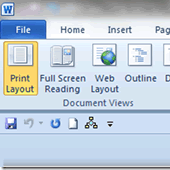
| Ribbon | The top section of Word where all the tabs and tools are | “The ‘Home’ tab is on the ribbon.” |
| Cursor | The blinking line indicating where you can type | “Place the cursor where you want to start typing.” |
| Bullet Points | A list where each item starts with a dot or other symbol | “Add bullet points to list your ideas.” |
| Numbered List | A list where each item starts with a number | “Use a numbered list for step-by-step instructions.” |
| Heading | A style used to create titles and subtitles | “Apply ‘Heading 1’ to the main title.” |
| Footer | The bottom section of each page for additional information | “Add the page number to the footer.” |
| Margin | The blank space around the edges of the page | “Adjust the margins to make the text fit better.” |
| Highlight | To make text stand out by applying a background color | “Highlight important terms in yellow.” |
| Save | To store the document on your computer | “Remember to save your document frequently.” |